Why Your Phone’s “Precise Location” Matters More Than You Think
“Allow while using” can still reveal where you live, work, and shop. Learn what Precise Location really shares—and how to control it.
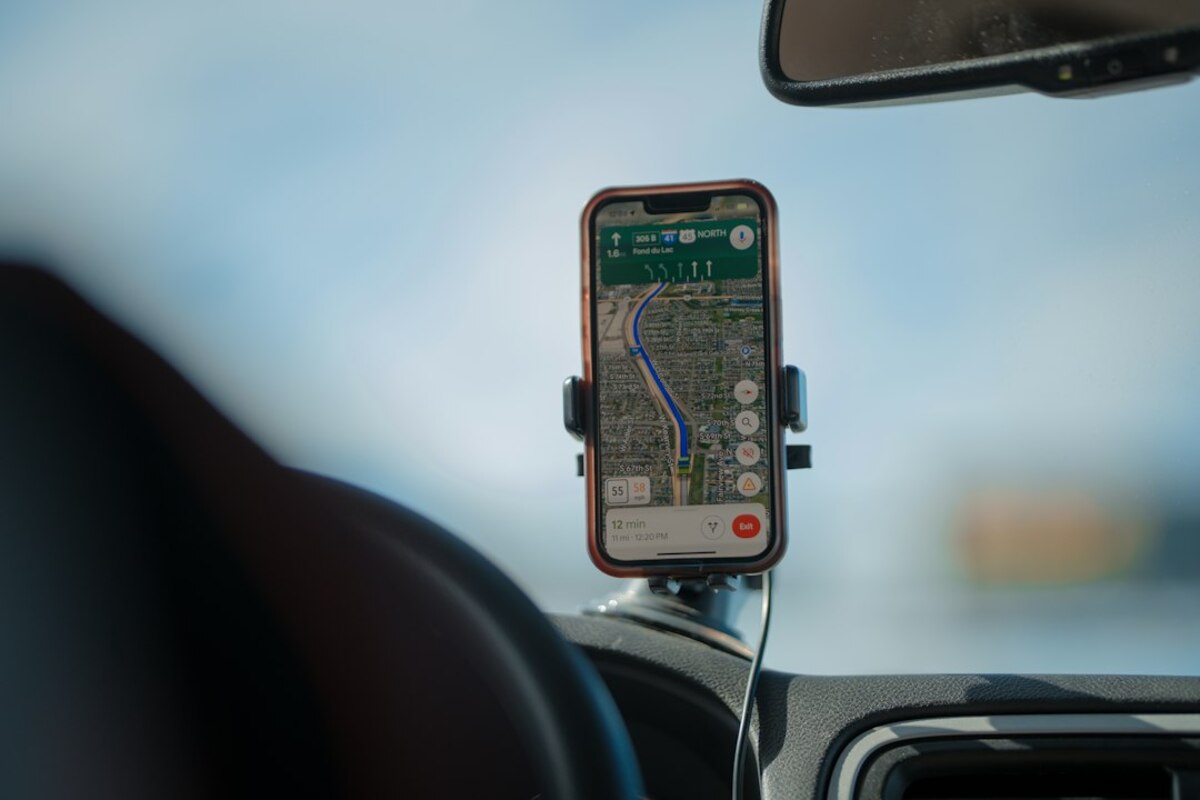
- Precise Location can pinpoint you within meters, turning simple app use into a detailed map of your routines.
- Approximate Location often works fine for weather, news, delivery estimates, and many everyday apps.
- You can reduce tracking by auditing permissions, limiting background access, and using one-time or approximate sharing.
Precise vs. Approximate: the difference that changes everything
Most people meet location permissions in a tiny pop-up at the worst possible time: you’re trying to order dinner, check the weather, or find a nearby café. The buttons look simple—Allow Once, Allow While Using, Don’t Allow. On many phones, there’s also a quieter switch: Precise Location (sometimes called “Exact” location).
That switch sounds technical, but it’s one of the clearest privacy choices you can make on a modern phone. Here’s the plain-English version:
- Precise location can often place you within a few meters (think: which building, which entrance, sometimes even which floor depending on signals).
- Approximate location shares a fuzzier area (think: the neighborhood or a broader section of town).
To visualize the difference, imagine you’re telling a friend where you are:
Approximate is like saying, “I’m in downtown.”
Precise is like saying, “I’m at 214 Pine Street, standing outside the blue door.”
That extra detail can be genuinely useful for some tasks. A maps app needs precision to guide you to the right driveway. A ride-hailing app needs accuracy so the driver finds the correct pickup point. But many apps request precise location even when their core service doesn’t require it—because more accurate location data is more valuable for analytics, advertising, and “personalization.”
And “personalization” can be harmless (“show me cafés nearby”) or uncomfortably revealing (“this app knows I’m at a medical clinic every Tuesday”). Precise location is not just a dot on a map—it can become a pattern of life.

How “just one permission” can reveal your routines
Location data becomes most sensitive when it’s collected repeatedly. One ping says where you are. Many pings say who you are—at least in the everyday sense of your habits, schedule, and likely identity.
Consider a normal week. Even if an app only checks your location when you use it, those moments can still build a surprisingly clear picture:
- Home: where your phone sits most nights.
- Work: where it spends many weekday hours.
- Errands: grocery stores, gyms, schools, places of worship, or regular appointments.
- Social life: which neighborhoods you visit on weekends, or which friend’s place you’re at often.
Now add background access (when an app can access location even when you aren’t actively using it). That’s where location becomes less like a helpful feature and more like a continuous sensor.
Here’s a short scenario that shows why precise location can matter even if you think you have nothing to hide:
Scenario: You download a free flashlight app (or a simple game). It asks for location. You tap “Allow While Using” because you want the app to stop asking. The app doesn’t need location to function, but it uses it to sell ads more effectively. Over time, ad networks may infer where you live and work based on repeated “while using” sessions, plus other signals from your phone.
Even if your name is never attached, patterns can still identify you. If a dataset shows a device that spends nights at one address and weekdays at one office, it’s often not hard to connect that to a real person—especially when combined with other common data like Wi‑Fi names, Bluetooth beacons, or app identifiers.
Precise location intensifies this because it reduces ambiguity. Approximate location might say “somewhere in this part of town.” Precise location can say “this exact building.” That can change the privacy stakes for:
- Health visits (clinics, counseling centers, pharmacies)
- Personal matters (family court, shelters, lawyers)
- Religious and political activity (places of worship, rallies, campaign offices)
- Children’s routines (schools, after-school activities)
If that sounds dramatic, bring it back to something ordinary: a coffee shop. If an app knows you visit the same café every morning at 8:10, it can predict when you’re likely away from home. If it also knows your home address area, the combination becomes more sensitive than each piece alone.
| App type | Usually needs Precise Location? | Often fine with Approximate |
|---|---|---|
| Maps / turn-by-turn navigation | Yes (for accurate directions and lane-level turns) | Only for broad planning (“How long to get there?”) |
| Ride-hailing / food delivery | Often yes (pickup/drop-off accuracy) | Sometimes (browsing restaurants or price estimates) |
| Weather | Rarely | Yes (city/neighborhood-level forecasts) |
| Social media | No (unless you’re actively tagging location) | Yes (local trends without pinpointing) |
| Shopping / coupon apps | Rarely | Yes (store region; you can also enter a ZIP/postcode) |
A common misconception is that turning off precise location “breaks” apps. In reality, many apps work perfectly well with approximate location. The biggest change is usually: fewer hyper-local features and slightly less “magic.” But for a lot of day-to-day use, that trade-off is worth it.
How to stay in control without turning your phone into a brick
Privacy controls are most effective when they fit your real life. The goal isn’t to never share location; it’s to share it intentionally and in the smallest dose that still gets the job done.
Think of location like giving directions to your home. You might tell a delivery driver your exact address—because that’s necessary. But you probably wouldn’t announce your address to everyone at a party. Precise location is the “exact address” version.
1) Use “Approximate” as your default, then upgrade temporarily
For apps like weather, news, retail, or casual browsing, start with approximate location. If an app truly needs precision (for example, you can’t get a ride to find you), you can switch precise on just for that moment.
Many people do this the other way around: they grant precise location everywhere, then try to claw privacy back later. Flipping that habit is one of the simplest improvements you can make.
2) Prefer “Allow Once” for one-off tasks
If you’re using an app because you’re traveling, visiting a new place, or testing something, “Allow Once” is like lending someone a key for an hour instead of giving them a copy forever. You get the feature, and the permission expires automatically.
3) Watch for background location (the silent multiplier)
Background access is easy to miss because it often shows up as a second step. An app might first ask for “while using,” then later nudge you to allow “always” with a message like:
- “Enable location in the background for a better experience.”
- “Get updates even when you’re not using the app.”
Sometimes that’s legitimate—fitness tracking and navigation are classic examples. But for many apps, background location is more about passive data collection than user benefit. If you don’t immediately understand why an app needs your location while you’re not using it, that’s a strong sign to say no.
4) Do a quick “permission audit” like you’re cleaning a junk drawer
You don’t need to become a privacy expert. Just schedule a five-minute check once in a while. Look at which apps have location access and ask two questions:
- Does this app still deserve location access? (Do you still use it? Does it need it?)
- If yes, does it need precise? (Or is approximate enough?)
If you find apps you haven’t used in months with location access, removing that access is like closing windows before leaving home. It’s not about paranoia—it’s about reducing unnecessary exposure.
5) Understand the “why” behind the request
Some apps are transparent and will explain exactly what location enables (“we use your location to show nearby stores”). Others keep it vague. When the explanation is fuzzy, treat it like a salesperson who won’t tell you the full price until you sign.
Also notice timing. If a to-do list app asks for precise location the first time you open it, that’s a clue the request is not essential. If a maps app asks when you tap “Navigate,” that’s expected.
Often, yes—just less accurately. Approximate location still gives a general area. Also, some apps can infer location indirectly (for example, through your IP address or nearby Wi‑Fi networks). Turning off precise location reduces the “pinpoint” detail, which is usually the most sensitive part.
Often, yes—just less accurately. Approximate location still gives a general area. Also, some apps can infer location indirectly (for example, through your IP address or nearby Wi‑Fi networks). Turning off precise location reduces the “pinpoint” detail, which is usually the most sensitive part.
Because location can improve ad targeting, measure foot traffic (“did you visit a store after seeing an ad?”), and enrich user profiles. Sometimes it also supports legitimate features. The key is to grant the minimum level needed for the feature you actually want.
Because location can improve ad targeting, measure foot traffic (“did you visit a store after seeing an ad?”), and enrich user profiles. Sometimes it also supports legitimate features. The key is to grant the minimum level needed for the feature you actually want.
Use Precise Location for apps that must physically guide something to you (navigation, rides, deliveries) or measure routes (certain fitness tools). For everything else, start with Approximate or “Allow Once.” If something breaks, you can always loosen the setting later.
Use Precise Location for apps that must physically guide something to you (navigation, rides, deliveries) or measure routes (certain fitness tools). For everything else, start with Approximate or “Allow Once.” If something breaks, you can always loosen the setting later.
6) Be mindful of “location sharing” inside apps, not just system permissions
Even if you limit system-level location access, some apps have their own sharing features: posting location with photos, tagging places, checking in, or attaching location to messages. These are separate decisions. A common pattern is:
- You disable precise location at the system level.
- You still accidentally share a very specific place by tagging a venue in a post.
Neither is inherently wrong. The point is awareness: system permission controls what an app can collect; in-app sharing controls what you intentionally broadcast.
7) Use small workarounds when you don’t want to share location at all
Some apps make location feel mandatory, but you can often sidestep it:
- Type a city or ZIP/postcode instead of “use my location.”
- For delivery, enter the address directly and keep location off until the driver is close (if the app allows it).
- For local news or sports, pick your region manually.
These small choices reduce how often your phone turns your real-world movements into data. And because they’re low-effort, they’re easier to keep doing.
Location can be one of the most helpful phone features—and one of the most intimate. The “Precise Location” toggle is a rare moment where privacy isn’t abstract: it’s the difference between sharing a neighborhood and sharing a front door.