Passkeys Explained: The New Way to Sign In Without Passwords
Passkeys let you sign in using Face ID, fingerprint, or a device PIN—no passwords to remember, and far fewer phishing risks.
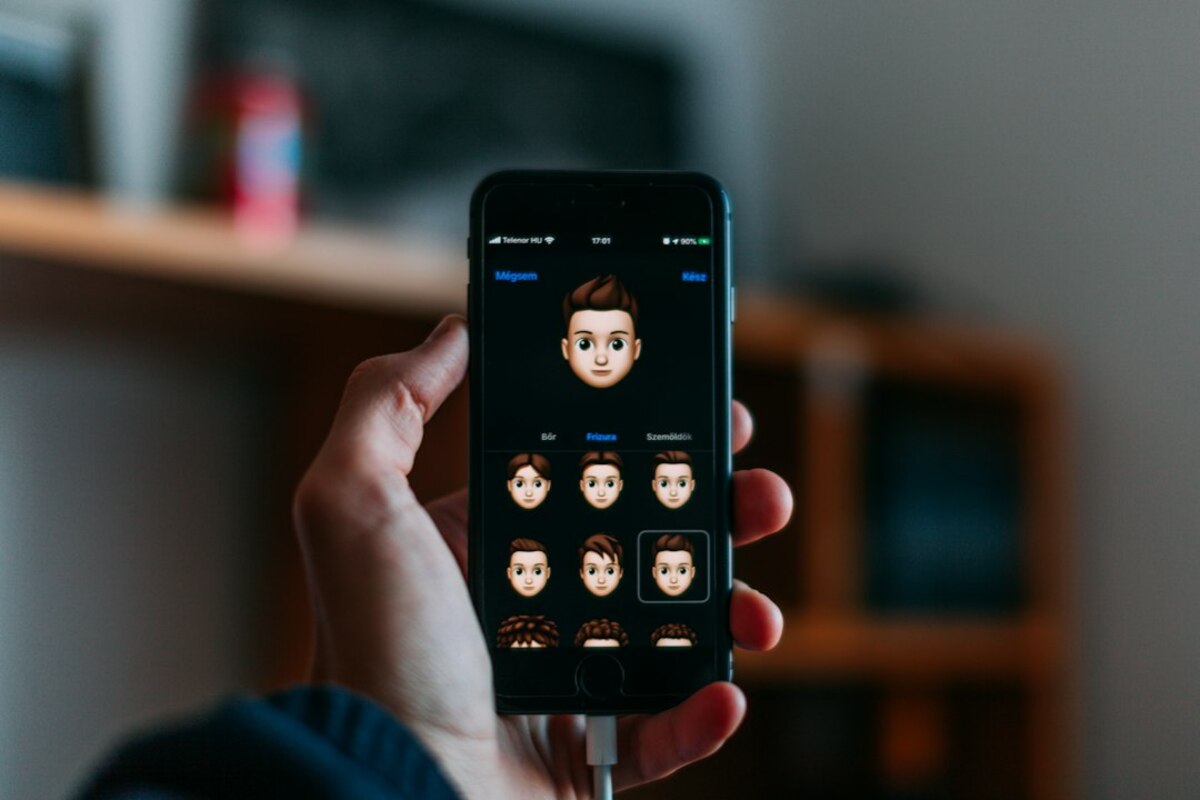
- Passkeys replace passwords with a cryptographic login tied to your device (Face ID, fingerprint, or PIN).
- They’re harder to phish because there’s no password to type into a fake site.
- You can use passkeys across devices via password managers or platform sync—and keep a fallback plan for older services.
Why everyone is suddenly talking about passkeys
Think about how many times you sign in each week: email, online banking, shopping, streaming, work tools, government portals, school apps. For years, the “standard” method has been a password—something you know. And in everyday life, that has led to a familiar routine: reuse the same password everywhere, forget it at the worst moment, or juggle a growing list of “Password123!” variations.
Passkeys are being pushed by big platforms (Apple, Google, Microsoft) and adopted by popular websites because they aim to fix two problems at once: convenience and security. You unlock a login using something you already do all day—Face ID, a fingerprint, or your device PIN—and behind the scenes your device proves it’s really you.
A simple real-life scenario helps: imagine you walk into a gym that used to require you to say a secret phrase at the desk. Anyone who overhears it could pretend to be you. Now the gym switches to scanning your membership card and your face. You don’t have to remember anything, and eavesdropping no longer helps an attacker. Passkeys work similarly: no shared secret you can accidentally give away.
What makes this topic feel “new” is not that the underlying cryptography is brand new—it’s that it’s finally packaged in a way normal people can use: built into phones, laptops, browsers, and common apps.

What a passkey is (in plain English) and how it works
A passkey is a modern login method that uses public-key cryptography—but you don’t need to understand the math to understand the idea.
Here’s the plain-English model:
- Your account has a “lock” (public key) stored by the website/app.
- Your device has the matching “key” (private key) stored safely on your phone/laptop (often in secure hardware).
- When you sign in, the website sends a challenge, and your device proves it has the correct key—without ever sending the private key.
This is why passkeys are so resistant to phishing. With passwords, a fake website can trick you into typing the password. With passkeys, there’s nothing meaningful to type in. Your device only responds to the legitimate site/app it created the passkey for.
What do you actually see as a user? Usually one of these flows:
- On your phone: Tap “Sign in with passkey” → Face ID / fingerprint → you’re in.
- On your laptop: Click “Use passkey” → approve with Windows Hello / Touch ID / device PIN → you’re in.
- On a shared computer: Use your phone to approve a sign-in (often via a QR code).
Another quick analogy: a password is like telling a bouncer a secret word. A passkey is like the bouncer handing you a random stamp to copy, and you respond with a unique stamp that only your membership card can make. A fake bouncer can’t do much with it.
| Login method | What you provide | What attackers usually try | What changes with passkeys |
|---|---|---|---|
| Password | A shared secret (typed) | Phishing, password reuse leaks, keylogging | No secret to steal by tricking you into typing |
| Password + SMS code | Password + text message code | SIM swap, SMS interception, phishing both steps | Passkeys avoid SMS and reduce phishing exposure |
| Authenticator app (TOTP) | Password + 6-digit rotating code | Phishing the code in real time | Passkeys typically bind to the real site/app |
| Passkey | Device unlock (Face ID/fingerprint/PIN) | Steal device + bypass unlock, or trick approvals | Much harder to phish; private key stays on device |
Important note: passkeys are often described as “passwordless,” but in real life you may still keep a password as a fallback for compatibility. Many services allow both during the transition phase.
Using passkeys in everyday life: setup, syncing, and common questions
Passkeys become practical when they work across your devices. Most people use more than one: a phone plus a laptop, sometimes a tablet, and maybe a work computer. The good news is that passkeys are designed for this world, but the details depend on where you save them.
Where passkeys live (typical options):
- Platform account sync: Saved to your Apple ID (iCloud Keychain), Google Password Manager, or Microsoft account. This helps you use passkeys on new devices after you sign in.
- Password managers: Some third-party managers can store and sync passkeys so you can use them across different operating systems more easily.
- Device-only (no sync): Less common for consumers, but sometimes used for high-security setups. If the device is gone, access can be painful without backups.
A realistic scenario: You create a passkey on your phone for a shopping site. Next day you open the site on your laptop. Instead of asking for your password, it shows “Use passkey” and may display a QR code. You scan it with your phone, confirm with Face ID, and you’re logged in on the laptop. After that, you might also create a passkey directly on the laptop for a smoother one-click login there.
What if you lose your phone? This is the most common worry, and it’s a good one. In practice, your safety net is usually:
- Synced passkeys (so a new phone can restore them after you sign into your Apple/Google/Microsoft account)
- Another device already signed in (a tablet or laptop)
- Account recovery through the service (email recovery, support flow, backup codes)
The key habit: if a service offers backup codes, download and store them somewhere safe (even printed and kept at home). They’re not glamorous, but they’re the “spare key” you’ll be thankful for if everything goes wrong at once.
Do passkeys replace two-factor authentication (2FA)? Sometimes they make the experience feel like 2FA, because you need your device and your biometric/PIN. Technically, passkeys can satisfy strong authentication requirements, but some services may still offer extra checks for sensitive actions (like sending money, changing your email, or logging in from a new country).
Are biometrics being sent to websites? Typically no. Your fingerprint/face scan is used locally to unlock the passkey on your device. The website receives cryptographic proof, not your biometric data.
Will passkeys work everywhere? Not yet. Adoption is growing fast, but you’ll still see a mix of:
- Services that support passkeys for login and signup
- Services that support passkeys only as a second step
- Services that haven’t added passkeys at all
That’s why it’s useful to think of passkeys as an upgrade you use when available, not a switch you must flip everywhere overnight.
Often yes, by approving the sign-in from your phone (for example, scanning a QR code). This avoids saving anything permanently on the work machine. Some workplaces may restrict this, depending on security policy.
Magic links rely on access to your email inbox (and sometimes can be forwarded or intercepted). Passkeys rely on cryptographic proof from your device and are designed to resist phishing more strongly.
Compatibility and transition. Many users have older devices or browsers, and some organizations have legacy systems. Keeping passwords for a while reduces support issues while passkey adoption grows.
Small practical tips when you try passkeys for the first time:
- Start with a low-stakes account (a forum or shopping site) to get comfortable.
- Make sure you have at least two recovery options set up (backup email, backup codes, another device).
- If you use multiple ecosystems (Windows + iPhone, Android + Mac), consider using a password manager that supports passkeys to reduce friction.
- When a site asks you to “name this passkey,” choose something that will help later (e.g., “Personal iPhone” vs “Work laptop”).
In day-to-day life, the biggest benefit is surprisingly boring—in a good way: fewer login interruptions. You stop playing the “which password did I use here?” game, and you spend less time digging through reset emails. The security improvement is real, but the convenience is what makes passkeys stick.