Why “Airplane Mode” Isn’t Just for Flights (and When It’s Actually Useful)
Airplane Mode can fix battery drain, stop distractions, speed up charging, and help you troubleshoot signal issues—if you know what it really turns off.
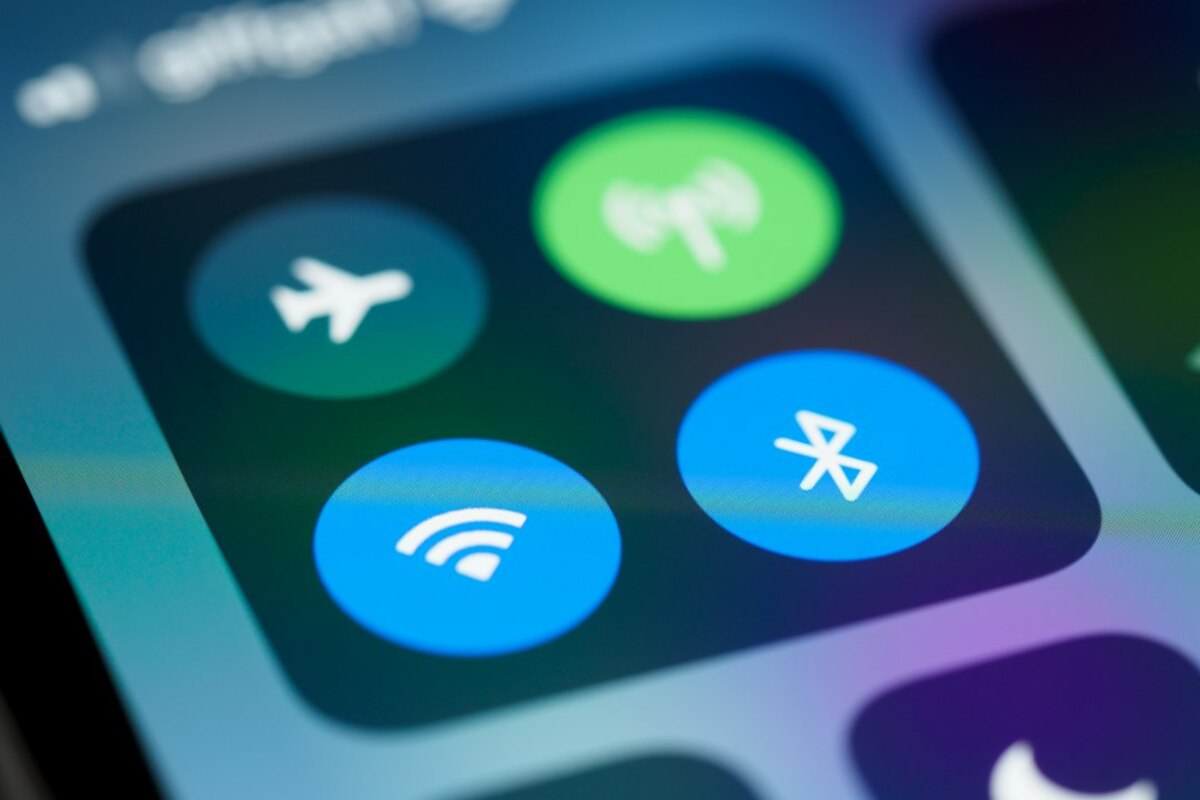
- Airplane Mode shuts off key radios (cellular, Wi‑Fi, Bluetooth), but you can turn Wi‑Fi or Bluetooth back on manually.
- It’s a simple way to reduce distractions, save battery, and improve charging—especially in weak-signal areas.
- It’s also a quick troubleshooting tool for flaky connections and roaming surprises.
What Airplane Mode actually does (in plain English)
Airplane Mode is a one-tap switch that tells your phone, tablet, or laptop to stop using its wireless “radios.” Think of your device as a tiny walkie‑talkie tower that can speak several wireless languages at once: cellular (your mobile network), Wi‑Fi, Bluetooth, and sometimes NFC or GPS-related services depending on the device. Airplane Mode is meant to silence the radios that could interfere with aircraft systems, but in daily life it’s also a convenient “quiet switch” for your connectivity.
On most phones, turning on Airplane Mode immediately turns off:
- Cellular (calls, SMS, mobile data like 4G/5G)
- Wi‑Fi
- Bluetooth
Here’s the part many people miss: Airplane Mode is not a permanent “no Wi‑Fi ever” lock. On iPhone and many Android phones, you can switch Wi‑Fi back on while staying in Airplane Mode. Same with Bluetooth. That’s why you can be in Airplane Mode on a flight yet still use the plane’s Wi‑Fi, or connect Bluetooth headphones while your cellular radio stays off.
| Feature | Usually turned off by Airplane Mode | Can you turn it back on manually? | What that means in real life |
|---|---|---|---|
| Cellular (calls/SMS/4G/5G) | Yes | No (unless you turn Airplane Mode off) | No calls/texts; no mobile data; avoids roaming charges |
| Wi‑Fi | Yes | Often yes | You can keep cellular off but still use Wi‑Fi for messaging and browsing |
| Bluetooth | Yes | Often yes | Use wireless earbuds, keyboards, car audio while staying “offline” from cellular |
| GPS / Location | Not always | Varies | Maps may still know where you are using GPS, but live traffic needs data |
| NFC (tap-to-pay) | Usually no | Varies | Some phones still allow contactless payments; others may restrict it |
A helpful analogy: imagine your phone is an apartment with multiple doors. Cellular, Wi‑Fi, and Bluetooth are three different doors that people can knock on. Airplane Mode closes all three doors at once—then you can choose to reopen Wi‑Fi or Bluetooth if you want visitors through those entrances, while keeping the cellular door locked.

Everyday situations where Airplane Mode is surprisingly handy
Even if you never fly, Airplane Mode can make your day smoother. It’s one of those “boring” buttons that quietly solves a lot of annoying problems.
1) You’re in a weak-signal area and your battery is melting
If you’ve ever watched your battery drop fast in a basement, on a train, or in the countryside, it’s often because your phone is working overtime trying to find a tower. When signal is weak, the cellular radio repeatedly searches and negotiates connections. That effort costs energy.
Try this: turn on Airplane Mode, then turn Wi‑Fi back on (if Wi‑Fi is available). Your phone stops hunting for cellular signal but still uses Wi‑Fi for internet. The result is often better battery life and a more stable connection for apps.
2) You want “focus mode” without setting up anything complicated
Notifications aren’t just distracting because of the banners—they’re distracting because your phone stays “reachable.” Airplane Mode is the blunt instrument version of focus tools: it makes you temporarily unreachable on cellular. That can be exactly what you need for a 30-minute sprint of work.
Real-life scenario: You’re writing a report and you keep getting pulled into quick calls or texts. Turn on Airplane Mode for 25 minutes. If you still need the internet, switch Wi‑Fi back on. You’ll stay connected to the web, but your phone won’t ring from cellular calls.
3) Faster, cooler charging (especially in a hurry)
Charging speed isn’t only about your charger; it’s also about what your phone is doing while it charges. When radios are active, the phone is constantly sending and receiving data—sometimes silently—using power and producing heat. Heat can slow charging and wear the battery over time.
- Airplane Mode + screen off often charges faster than “normal mode + scrolling apps.”
- It can also help your phone charge with less heat, which is kinder to the battery.
This is particularly noticeable when your battery is low and you need a quick boost before leaving the house.
4) Avoiding roaming surprises while traveling
Roaming charges usually happen when your phone uses a foreign cellular network. If you’re traveling internationally and you only want to use Wi‑Fi (hotel, café, friend’s home), Airplane Mode is a clean safety catch: it turns off the cellular radio entirely.
Practical approach: Enable Airplane Mode as soon as you land, then manually turn on Wi‑Fi. You can still use messaging apps, email, maps (to an extent), and calls through internet-based services—without your phone quietly using cellular data in the background.
5) When you’re sleeping but still want an alarm
Many people assume Airplane Mode will break alarms. In most cases, alarms still work because they don’t require internet or cellular signal. Airplane Mode can reduce overnight battery drain and late-night distractions while still letting you wake up on time.
Small note: If you rely on calls for emergencies, Airplane Mode will block them. Some people compromise by using Do Not Disturb instead—or by allowing specific contacts—depending on what matters most.
6) Reading or gaming without “random lag spikes”
Some games and apps behave oddly when your device keeps switching between Wi‑Fi and cellular (or when cellular data is weak). Airplane Mode (with Wi‑Fi turned on) can force the device to stop attempting cellular handoffs, which can make online experiences more consistent.
Airplane Mode as a quick troubleshooting tool (the “radio reboot” trick)
When your phone suddenly can’t connect—Wi‑Fi is acting strange, mobile data won’t load, Bluetooth won’t pair—people often restart the entire device. That works, but it’s slow and disruptive. Airplane Mode can act like a “soft reset” for your network radios.
The basic idea: you turn all radios off at once, wait a few seconds, then turn them back on. It’s like telling your phone: “Stop everything, start over, and renegotiate your connections.”
Often, yes. Turn on Airplane Mode, wait 10–20 seconds, then turn it off. This forces the phone to reconnect to the cellular network. It can fix temporary issues like being “registered” to a tower but not actually passing data.
Often, yes. Turn on Airplane Mode, wait 10–20 seconds, then turn it off. This forces the phone to reconnect to the cellular network. It can fix temporary issues like being “registered” to a tower but not actually passing data.
It can help if your phone is confused about routing traffic (especially when moving between networks). Try Airplane Mode on → then turn Wi‑Fi back on while still in Airplane Mode → reconnect to the Wi‑Fi network. If the issue is the router or the internet provider, it won’t fix it—but it’s a fast first step.
It can help if your phone is confused about routing traffic (especially when moving between networks). Try Airplane Mode on → then turn Wi‑Fi back on while still in Airplane Mode → reconnect to the Wi‑Fi network. If the issue is the router or the internet provider, it won’t fix it—but it’s a fast first step.
Airplane Mode can reset Bluetooth quickly: enable Airplane Mode, then turn Bluetooth back on, and try pairing again. If that fails, remove (“Forget”) the device in Bluetooth settings and pair from scratch.
Airplane Mode can reset Bluetooth quickly: enable Airplane Mode, then turn Bluetooth back on, and try pairing again. If that fails, remove (“Forget”) the device in Bluetooth settings and pair from scratch.
Here are a few short “micro-recipes” people use in real life:
- The elevator fix: If your phone loses signal after being underground, toggle Airplane Mode for 10 seconds to speed up reconnecting.
- The hotel Wi‑Fi fix: If Wi‑Fi says “connected” but apps hang, switch Airplane Mode on, then Wi‑Fi on, and rejoin the network.
- The meeting reset: If you want to stop all incoming interruptions for a set time, Airplane Mode gives you a clean break without digging through settings.
One more subtle point: Airplane Mode also stops your device from doing quiet background network tasks on cellular—things like syncing photos, app updates, and telemetry. That’s why it can feel like your phone becomes calmer and more predictable when it’s on.
If you want to use Airplane Mode intentionally, think of it as three tools in one:
- A privacy pause: fewer radios actively communicating
- A battery lever: less network searching and background activity
- A troubleshooting shortcut: reset connections without rebooting the whole device
It’s a simple switch, but once you start noticing how often your phone is “busy” trying to stay connected, Airplane Mode becomes less of a flight-only icon—and more like a practical control for everyday life.