Why Your Phone Keeps Asking for Permissions (and How to Answer Without Guessing)
Camera, location, microphone… apps ask for a lot. Learn what permissions really mean, when to allow them, and quick ways to fix over-sharing.
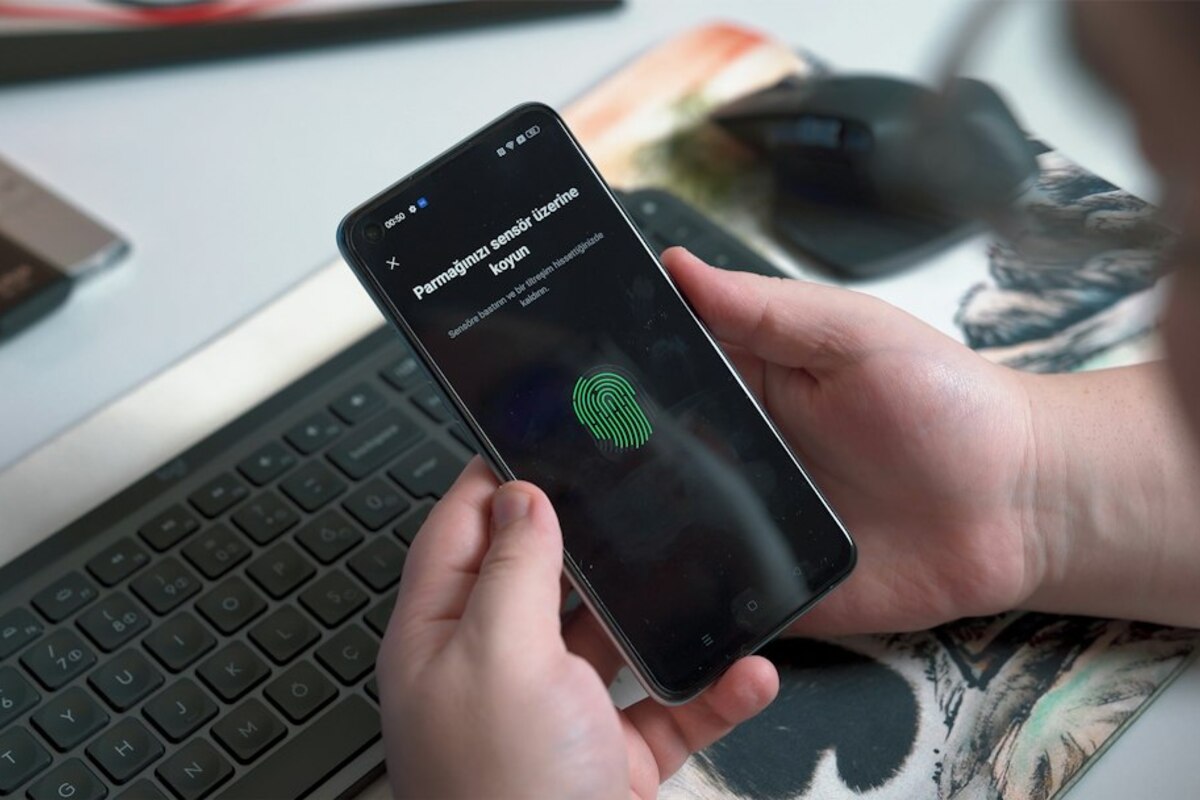
- Most permissions fall into a few simple buckets (location, camera, mic, files, contacts) and each has safer “only while using” options.
- Many apps request access for convenience, not necessity—saying “Not now” rarely breaks core features.
- You can audit and revoke permissions in minutes, plus use “approximate location” and one-time access to reduce tracking.
The moment you tap “Allow” (what you’re actually giving away)
You install a new app, open it, and it immediately pops up a request: “Allow this app to access your location?” You’re standing in line, one hand holding coffee, the other trying to get the app working. So you do what most people do: you pick whatever gets you past the prompt fastest.
Permissions are meant to be a safety gate. They’re the operating system’s way of asking: “Should this app be able to do this on your device?” But the way permission pop-ups appear—right when you’re busy and just want to use the app—turns them into a speed bump rather than a thoughtful decision.
Here’s a simple mental model that makes permissions easier: think of your phone like an apartment. Apps are guests you invite in. Permissions are the rooms and drawers you let them access.
- Location is like giving directions to your apartment and telling the guest where you are at all times.
- Camera is letting them use the camera in your living room whenever they want.
- Microphone is letting them listen in through your intercom.
- Photos/Files is handing them a key to your filing cabinet.
- Contacts is giving them your address book.
Some guests genuinely need access to certain rooms to be helpful. A navigation app obviously needs location. A barcode scanner needs the camera. A voice memo app needs the microphone. The tricky part is that many apps ask for access because it makes their life easier (tracking, analytics, targeted ads, growth invites), not because it makes your life better.
Also, permissions aren’t always all-or-nothing anymore. Modern Android and iOS versions often offer choices like:
- Allow once (one-time access)
- Allow while using the app (only when the app is on screen)
- Ask every time
- Don’t allow
That’s the key: most of the time, you can choose a “smaller yes.” You don’t have to decide between “full access forever” and “nothing.”

A permission cheat sheet you can use in real life
When a permission prompt appears, you don’t need to become a privacy expert. You just need a fast way to judge whether the request matches what you’re trying to do right now.
Try this quick three-question test:
- Does the app’s main feature clearly require this? (Example: a ride-hailing app needs location.)
- Is there a “while using” or “one-time” option? If yes, that’s usually the best starting point.
- What’s the worst plausible misuse if I say yes? Not “movie hacker” stuff—just real-world annoyances like targeted ads, tracking patterns, or accidental sharing.
Below is a practical cheat sheet for common permissions. It’s not about panic; it’s about matching access to purpose.
| Permission | Usually OK to allow when… | Safer choice when unsure | What can go wrong if over-granted |
|---|---|---|---|
| Location | Navigation, weather, delivery tracking, rides | “While using” or “Approximate” | Routine tracking (home/work patterns), hyper-targeted ads |
| Camera | Scanning QR codes, taking profile photos, video calls | Allow, then revoke later if it’s a one-off | Unwanted access if app is shady (rare, but higher impact) |
| Microphone | Voice notes, calls, voice assistant features | “Ask every time” / “While using” | Audio capture concerns; accidental recordings |
| Photos / Media | Photo editing, posting images, backups | “Selected photos only” (if offered) | Access to private screenshots, documents, IDs |
| Contacts | Messaging apps that truly sync contacts, calling apps | Don’t allow; use manual search/invites | Uploading your address book; social graph building |
| Notifications | Messaging, delivery updates, calendar reminders | Allow, then disable specific categories | Spammy pings, attention hijacking |
| Bluetooth / Nearby devices | Headphones, car audio, smartwatches, trackers | Allow only when pairing/using | Nearby device discovery; sometimes location-adjacent signals |
Real-life scenario: You download a “flashlight” app and it asks for location and contacts. A flashlight needs the camera flash (maybe) but not your location or contacts. That’s a mismatch. A good response is: deny, and see if the flashlight still works. If it breaks, that’s your cue to find a different app.
Another scenario: A restaurant app asks for location “Always.” The app may want to send “nearby deal” notifications in the background. If you only use it when you’re deciding what to eat, “While using the app” is plenty.
One more tip that reduces anxiety: many apps ask for a permission early even though they only need it later. It’s common to request camera access on first launch even if you won’t scan anything until next week. When in doubt, pick Don’t allow and grant later when you actually use the feature. Most apps will ask again at the moment it’s needed.
How to take control in 10 minutes (audit, fix, and set better defaults)
You don’t have to remember every decision you made in the past. The better approach is to do a quick audit—like checking which subscriptions you’re still paying for.
Step 1: Start with the “high-impact” permissions
If you only have time for a few, review these first because they’re the most sensitive or most commonly over-granted:
- Location (especially “Always”)
- Microphone
- Camera
- Photos/Files (especially “All photos”)
- Contacts
Step 2: Use “While using” and “One-time” as your default yes
If an app is useful but you don’t want to over-share, the sweet spot is often:
- Location: “While using” + “Approximate” if precision isn’t needed
- Microphone/Camera: “Ask every time” or “While using”
- Photos: “Selected photos” when possible
These options let you keep convenience without turning your phone into a constant sensor feed for every app you try.
Step 3: Watch for “permission creep” during updates
Apps evolve. A simple shopping app adds a social feature. A photo app adds video. Sometimes that’s fine; sometimes it’s just a reason to collect more data. If you notice an app asking for new permissions after an update, treat it like someone asking for a new copy of your house key. Ask: “What changed that makes this necessary?”
Step 4: Fix the two most common everyday annoyances
- Annoyance #1: Too many notifications. Notifications are a “permission” too. If an app is useful but noisy, don’t uninstall it immediately—turn off marketing categories and keep only essentials (messages, delivery updates, security alerts).
- Annoyance #2: Apps that insist on precise location. Many apps work perfectly with approximate location (think: weather, news, store finders). Save precise location for maps, rides, and emergency services.
Usually the core app won’t break; a specific feature will. A social app might still work but can’t auto-find friends without contacts. A food delivery app might still work but you’ll type your address instead of using GPS. Deny first, then grant later only if you miss a feature you actually use.
Usually the core app won’t break; a specific feature will. A social app might still work but can’t auto-find friends without contacts. A food delivery app might still work but you’ll type your address instead of using GPS. Deny first, then grant later only if you miss a feature you actually use.
“While using” means the app can access location when it’s on screen (or actively being used). “Always” allows location access in the background—when the app isn’t visible. Background location can be useful for navigation, safety features, or automation, but it’s also the easiest way to build a detailed log of where you go.
“While using” means the app can access location when it’s on screen (or actively being used). “Always” allows location access in the background—when the app isn’t visible. Background location can be useful for navigation, safety features, or automation, but it’s also the easiest way to build a detailed log of where you go.
Permissions help, but they’re not the whole story. An app can still collect data you give it directly (email, purchases, search terms inside the app). Also, general device info and usage analytics can exist without “scary” permissions. Think of permissions as a strong front door lock—not a full invisibility cloak.
Permissions help, but they’re not the whole story. An app can still collect data you give it directly (email, purchases, search terms inside the app). Also, general device info and usage analytics can exist without “scary” permissions. Think of permissions as a strong front door lock—not a full invisibility cloak.
A simple habit that pays off: once a month, pick one category—like Location or Photos—and review which apps have it. You’ll often find old apps you forgot about still have access. Revoking permissions doesn’t delete the app; it just tightens the rules.
One last practical trick: if an app feels pushy (“You must allow location to continue”), try backing out and using a different path (manual address entry, search by city, upload from a file picker). If the app truly refuses to function without broad access that seems unrelated to its purpose, that’s useful information about the app’s priorities—and a good reason to choose an alternative.